
Repair Old Photos Online
Start with a scan of the whole print. Keep your original, inspect the eyes and mouth side by side, and download only the result you want to keep.
One-time photo packs
$4.99 / 10 · $9.99 / 30 · $19.90 / 80 photos
$0.50 per photo with the 10-photo pack; $0.33 with 30 or $0.25 with 80 (rounded). No subscription.
Compare: Remini Pro Weekly — $9.99/week, a recurring subscription. US iOS App Store, checked October 22, 2026. Other plans, regions and offers vary; features are different.
Not ready to buy? One daily preview with Google sign-in — up to 512 px, watermarked, preview only, resets at 00:00 UTC.
 BeforeAfter
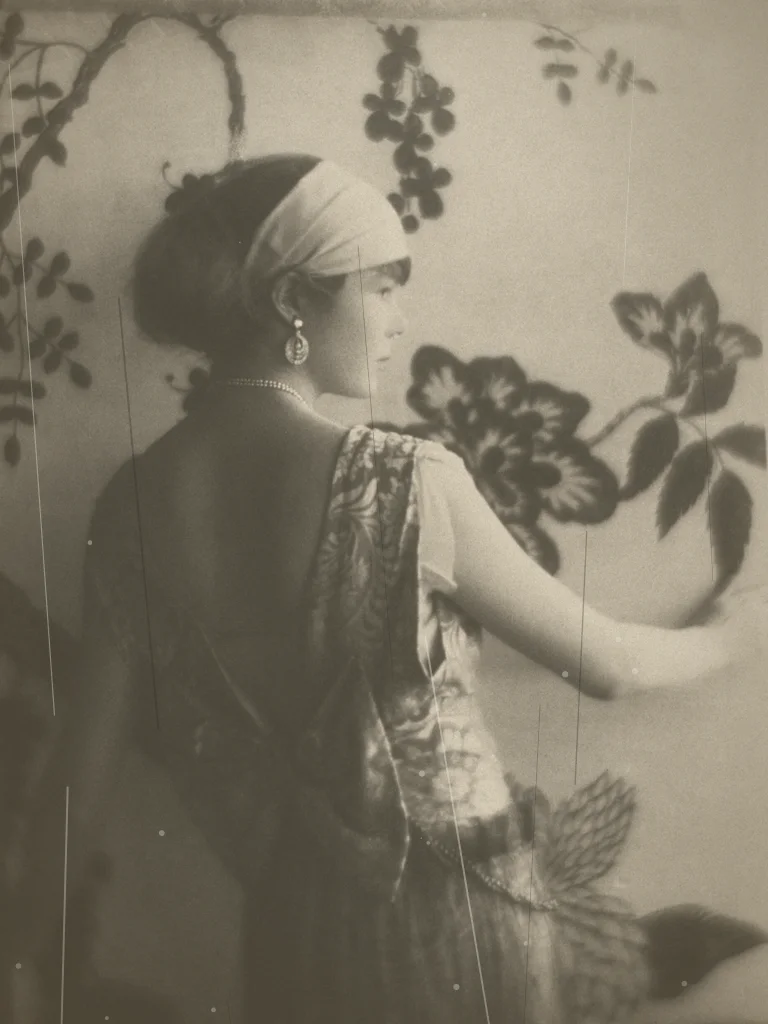
Sample demo — fixed before/after pair · Public domain, via Wikimedia Commons
Try the tool
No photo at hand? Pick a bundled sample to see what a restoration looks like. Each pair is fixed demo material: the “before” is a programmatically degraded copy of a public-domain photograph and the “after” is the original (sources and edits documented in ASSET_SOURCES.md). Pairs are clearly marked as sample demos.
Try a sample demo
Or upload your own photo
JPEG, PNG or WebP up to 10 MB, between 64 and 8192 px per side · Kids welcome with a parent's OK · no celebrities. General restoration: repair scratches, fading, yellowing and light damage in one pass.
Choose a repair based on the damage
Fine noise and softness can improve with an image restoration model. Missing faces, large tears and folded paper covering important details need reconstruction; no model can recover the original information with certainty.
Scan at 300–600 dpi before you try a repair. A phone photo with glare or perspective distortion gives the tool less usable detail. Work from a copy and compare each result with the unedited scan.
Face enhancement is optional and off by default on the general restoration tool. Turning it on can rebuild facial details. Inspect every face before sharing or printing a family photograph.
Honest limitations
- Severely damaged areas — torn corners, missing faces, large water stains — may need manual retouching beyond an automated pass.
- Extremely low-resolution scans (under 64 px per side) do not carry enough detail to reconstruct.
- Custom uploads proceed only when Google sign-in, server-side validation, input/output moderation, atomic budget and quota controls, and the configured private processing storage are all available; otherwise the request fails closed.
Who uses old photo restoration
Family archives
Digitize a shoebox of prints, then repair the scans before sharing them with relatives or printing a family book.
Genealogy projects
Clean up portraits of ancestors so faces are readable in a family tree, a memorial page or a reunion slideshow.
Memorials and anniversaries
Prepare a restored portrait for a framed gift, an obituary collage or a milestone celebration.
Local history and schools
Restore class photos, team pictures and town scenes for exhibitions, yearbooks or community archives.
How it works
1
Scan the whole print
Use a flatbed scan at 300–600 dpi. Include the edges and avoid glare.
2
Upload a copy
Choose a JPEG, PNG or WebP. Keep the original scan somewhere safe.
3
Check faces and damage
Compare the original and restored image, then use the enlarged face views to inspect details.
4
Keep the right version
Save a result only after checking it. Severe tears or missing details may still need manual retouching.
Best practices for good results
Scan, don’t photograph
A flatbed scan at 300–600 dpi beats a phone photo of a print: no glare, no perspective distortion, more detail.
Upload the highest resolution you have
More pixels give the restoration more real detail to work with, especially around eyes and hands.
Keep the original untouched
Always restore a copy. The original scan is your safety net if you want a different approach later.
Common problems and how to fix them
The upload is rejected
Only JPEG, PNG and WebP up to 10 MB are accepted. Convert HEIC or TIFF scans first, and keep each side under 8192 px.
Faces look too smooth
Over-aggressive cleanup can erase skin texture. If that happens, prefer a lighter general pass over stacked repairs.
The photo is torn or incomplete
Automated restoration repairs surface damage, not missing content. Heavily torn prints still need manual retouching.
Frequently asked questions
Is this old photo restoration tool free to use?
The bundled sample demos are free. Google sign-in gives each account one low-resolution watermarked preview per UTC day (up to 512 px), with no card required. Previews have no finished-image download.
How much does it cost?
Paid packs cost $4.99 for 10, $9.99 for 30 or $19.90 for 80 photos, as one-time purchases with no subscription. The 10-photo pack is $0.50 per photo after rounding. Choose paid processing explicitly for a full-size download with no watermark. Failed generations automatically refund your credit (up to 3 times a day); after that, failures go to support review.
What happens to my photo after I upload it?
When you press restore, the photo is uploaded to this site’s server for validation and processing. SeeAPI reviews the input and result for safety, and Kie Nano Banana 2.1 restores the photo. Approved results are stored in owner-scoped private R2. The Privacy Policy lists the configured access and deletion periods. Kie keeps uploaded copies for 24 hours and generated media for 14 days; we cannot immediately delete its copies, including media blocked by our review.
Which file formats and sizes are supported?
JPEG, PNG and WebP images up to 10 MB, between 64 and 8192 pixels per side. For best results, upload a flatbed scan at 300 dpi or higher.
Can it restore color to a black-and-white photo?
Yes — that is a separate task. Use the colorize page for black-and-white photos, and this page for combined scratch, fade and yellowing repair.
Will the restored photo still look like the same person?
Identity preservation is the core quality bar: a restoration must keep the face recognizable and the photographic texture intact. Always compare the result with the slider before downloading.
Can I restore several photos at once?
Photos are restored one at a time, so you can review each result before downloading it. Upload the next photo when the current one is done.
Can I upload photos of my kids, or old photos of me as a child?
Yes, if you are their parent or guardian or have permission. Childhood photos of yourself are fine too. Tick the confirmation box before each restoration.
What happens to a photo of my child?
It is used only to restore that photo. No face recognition, no age detection, no public gallery, and it is never sold or used for training. Our copy stops being accessible after 15 minutes and is removed by storage expiry within about two days; our restoration provider Kie keeps its own copy of the upload for up to 24 hours and of the result for up to 14 days. Email hello@heirloompix.com and we delete our copies within 24 hours.