
Colorize Old Photos Online
Turn a black-and-white family photograph into a natural, believable color image. Compare both versions side by side before you download.
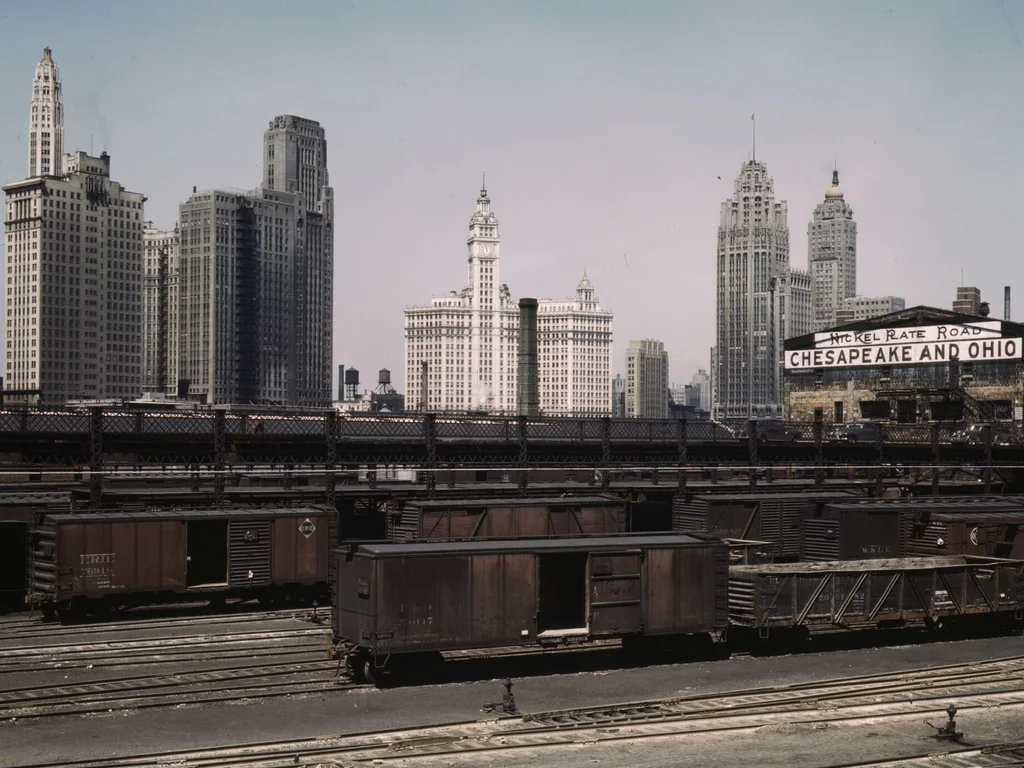 BeforeAfter
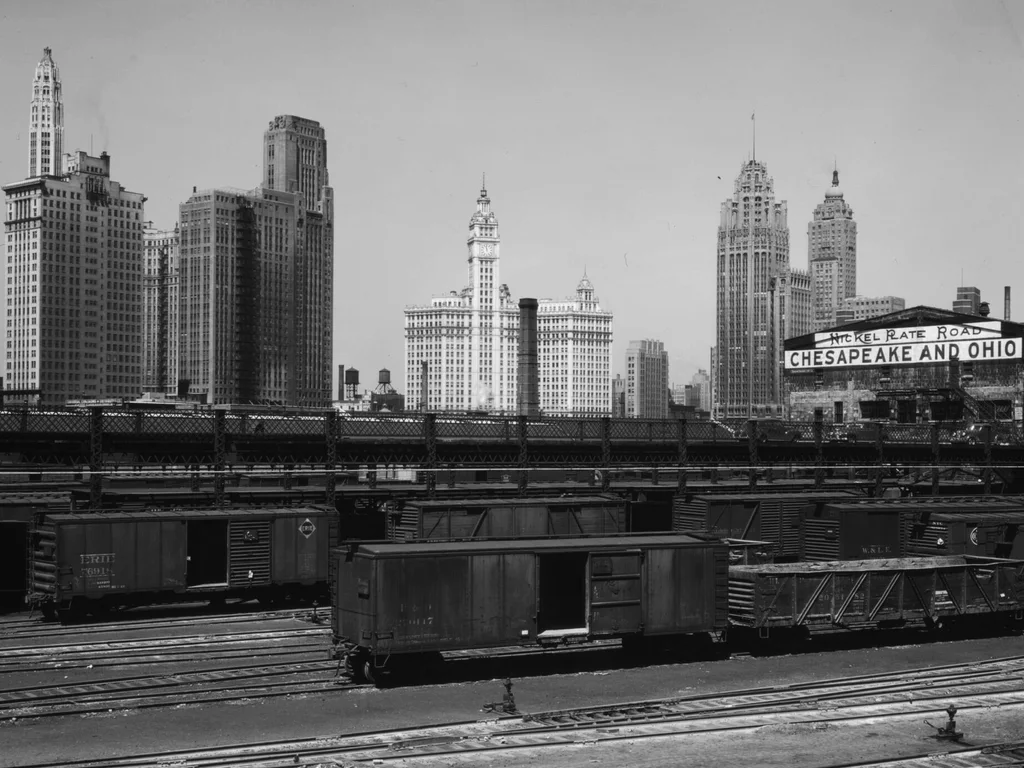
Sample demo — fixed before/after pair · Public domain, via Wikimedia Commons
Try the tool
Try a bundled sample first: each demo pair shows a fixed before/after colorization, clearly marked as a sample demo. The “before” is a grayscale conversion of a public-domain color photograph; the “after” is the original (documented in ASSET_SOURCES.md).
Try a sample demo
Or upload your own photo
JPEG, PNG or WebP up to 10 MB, between 64 and 8192 px per side · Kids welcome with a parent's OK · no celebrities. Add plausible, historically natural color to black-and-white photographs.
What colorization does — and its honest limits
Colorization maps the gray tones of a black-and-white print to plausible colors: skin, hair, clothing, sky and foliage. Done well, it makes an old photograph easier to connect with, without making it look like a modern snapshot.
The colors are inference, not recovered truth. A model cannot know that a dress was burgundy; it picks a plausible, restrained palette. Where the original scene is ambiguous, expect natural but approximate colors.
Honest limitations
- Colors are educated guesses, not historical fact — specific garment or uniform colors may differ from reality.
- Heavily faded or low-contrast scans give weaker color cues; consider a general restoration pass first.
- Custom uploads proceed only when Google sign-in, server-side validation, input/output moderation, atomic budget and quota controls, and the configured private processing storage are all available; otherwise the request fails closed.
Where colorized photos are used
Family history
Help younger relatives connect with grandparents’ and great-grandparents’ portraits by seeing them in color.
Memorial gifts
A colorized portrait printed and framed is a common anniversary or remembrance gift.
School and museum displays
Color versions of historical scenes make exhibits and classroom materials more approachable.
Publishing and blogging
Writers covering family or local history often pair the original with a colorized version for context.
How it works
1
Upload a black-and-white photo
JPEG, PNG or WebP, up to 10 MB. The file is checked in your browser before anything leaves your device.
2
Run the colorization
The colorize preset maps gray tones to a restrained, natural palette. Scratches and fading are separate tasks — fix those first if needed.
3
Compare both versions
Use the before/after slider to check faces, clothing and backgrounds at full detail.
4
Download the color image
Save the colorized copy. Your original scan is never modified.
Best practices for colorization
Start from the cleanest scan
Colorization amplifies whatever contrast exists. A clean, well-lit scan produces steadier colors.
Fix damage first
Remove scratches and restore fading before colorizing, so damage does not pick up color of its own.
Expect restraint, not saturation
Believable colorization is muted. If a result looks neon, it is wrong — re-run from a better scan.
Common problems and how to fix them
Skin tones look orange or waxy
Usually a low-contrast scan. Restore contrast first, then colorize again.
The photo is sepia, not black-and-white
Sepia casts still colorize, but a neutral scan (or a fade-restore pass first) gives cleaner results.
I need historically accurate colors
Automated colorization is approximate. For uniforms, medals or heraldry, verify colors against records before publishing.
Frequently asked questions
Is colorizing old photos free here?
The bundled sample demos are free. Google sign-in gives each account one low-resolution watermarked preview per UTC day (up to 512 px), with no card required. Previews have no finished-image download.
How much does it cost?
Paid packs cost $4.99 for 10, $9.99 for 30 or $19.90 for 80 photos, as one-time purchases with no subscription. The 10-photo pack is $0.50 per photo after rounding. Choose paid processing explicitly for a full-size download with no watermark. Failed generations automatically refund your credit (up to 3 times a day); after that, failures go to support review.
Are the colors historically accurate?
They are plausible, not verified. The model infers natural colors from tones and context; it cannot know the real color of a specific dress, car or uniform.
Should I colorize or restore first?
Restore first. Scratches, stains and fading confuse colorization, so clean the scan, then colorize the repaired version.
Does my photo get uploaded to a server?
When you press restore, the photo is uploaded to this site’s server for validation and processing. SeeAPI reviews the input and result for safety, and Kie Nano Banana 2.1 restores the photo. Approved results are stored in owner-scoped private R2. The Privacy Policy lists the configured access and deletion periods. Kie keeps uploaded copies for 24 hours and generated media for 14 days; we cannot immediately delete its copies, including media blocked by our review.
What image formats can I colorize?
JPEG, PNG and WebP up to 10 MB, between 64 and 8192 pixels per side.
Can I upload photos of my kids, or old photos of me as a child?
Yes, if you are their parent or guardian or have permission. Childhood photos of yourself are fine too. Tick the confirmation box before each restoration.
What happens to a photo of my child?
It is used only to restore that photo. No face recognition, no age detection, no public gallery, and it is never sold or used for training. Our copy stops being accessible after 15 minutes and is removed by storage expiry within about two days; our restoration provider Kie keeps its own copy of the upload for up to 24 hours and of the result for up to 14 days. Email hello@heirloompix.com and we delete our copies within 24 hours.